
Brackets Hide Game Schedule
Tournament directors may wish to hide the schedule from the public while finalizing it. Because teams can access the schedule through four menu links—Teams, Standings, Full Schedule, and Venues—all four links must be disabled until the schedule is ready to be published.
Step 1: Disable the Teams, Standings and Full Schedule pages
In Brackets navigate to:
Event Website Builder⏎
Site Menu (Pages)⏎
You will now see a list of pages and menu items on your tournament website.
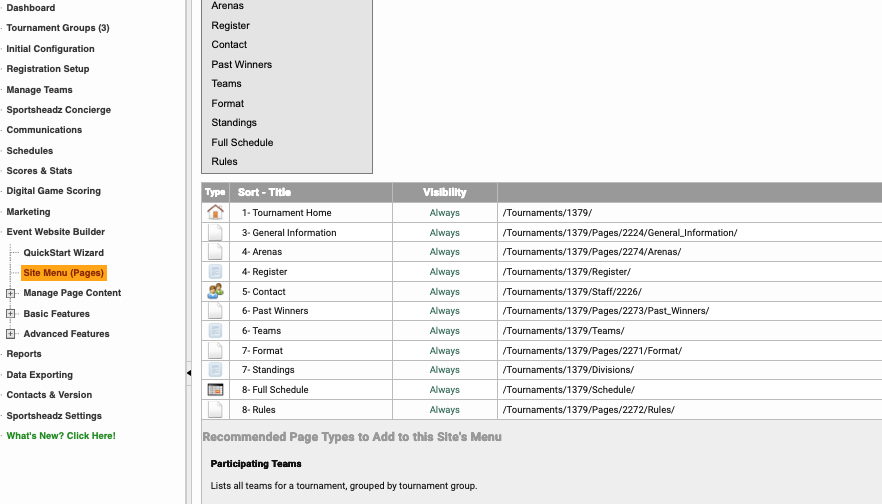
Look specifically to edit rows with "Teams", "Standings" and "Full Schedule"
Hover your mouse over the first item and when the menu row turns yellow, double-click to open the editing window
To hide the page until you are ready for it to be seen publicly, add today's date in the visible until box.
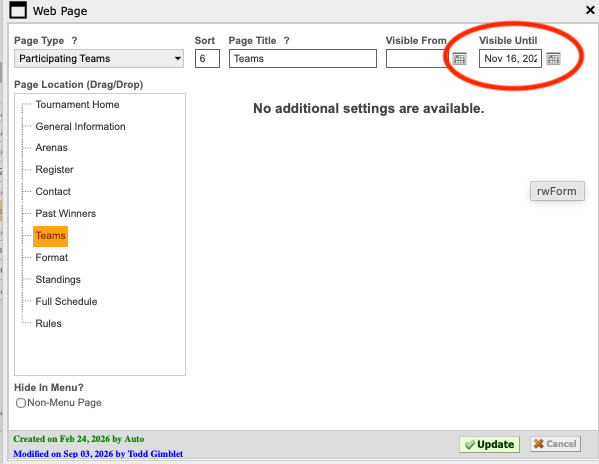
Once you are ready to have the page public, return to this same page and remove the date from the cell.
Step 2: Hide the Venues Link.
In Brackets, navigate to:
Event Website Builder⏎
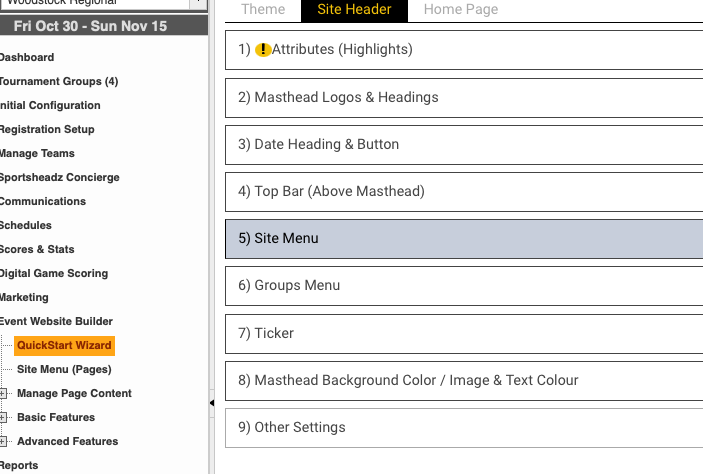
Quick Start Wizard⏎
Click 5) Site Menu
Change Show Venues Link from "Yes" to "No"
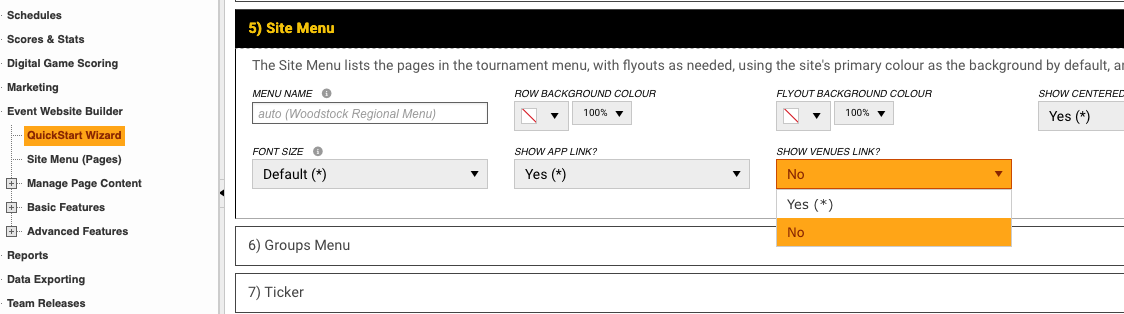
Once you are ready to have the page public, return to this same page and change from "No" to "Yes"