
Brackets Notes & Tasks
Notes & Tasks help you keep all of your tournament-related information in one place. Instead of relying on emails, sticky notes, or spreadsheets, you can record commitments you've made to teams and track outstanding items until they're completed. Notes & Tasks are included with the Full Version of Brackets.
Here are some of the biggest benefits:
- Nothing gets forgotten. Tournament directors juggle hundreds of small details. Recording tasks with due dates ensures important items like scheduling officials, ordering medals, confirming ice times, or sending team reminders don't get missed.
- Everything is tied to the tournament or a team. Instead of searching through emails or notebooks, notes and tasks are attached directly to the tournament or specific team.
- Improves communication between organizers. If multiple volunteers or administrators are working on the event, everyone can see what has been done, what still needs attention.
- Tracks conversations with teams. Rather than trying to remember phone calls or email exchanges.
What is the difference between a Note & Task?
A Note records information that may be important now or in the future, but does not require any action. A Task represents something that requires action. Tasks help you organize work, track deadlines, and ensure nothing is overlooked. Unlike Notes, Tasks are intended to be completed and marked finished.
In Brackets, navigate to Manage Teams —> Notes & Tasks
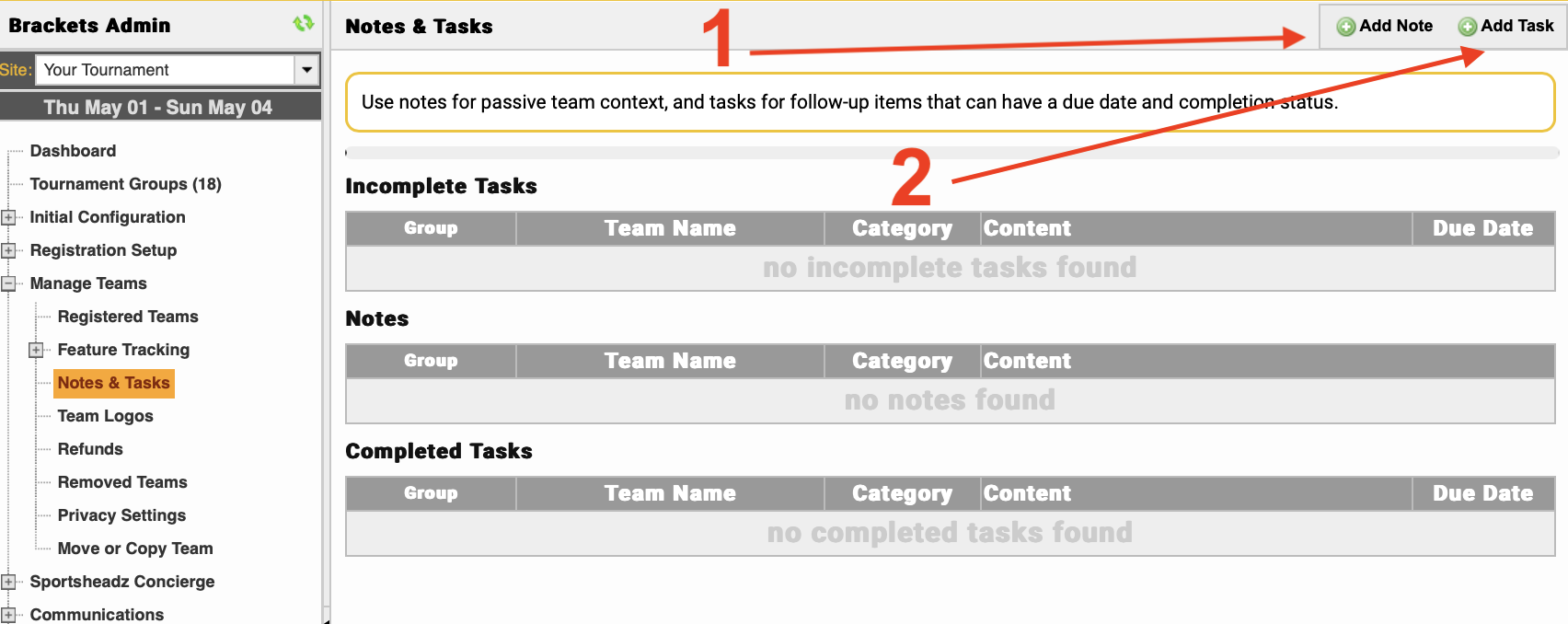
Notes:
- To add a team or tournament Note, click the Add Note button (top right)
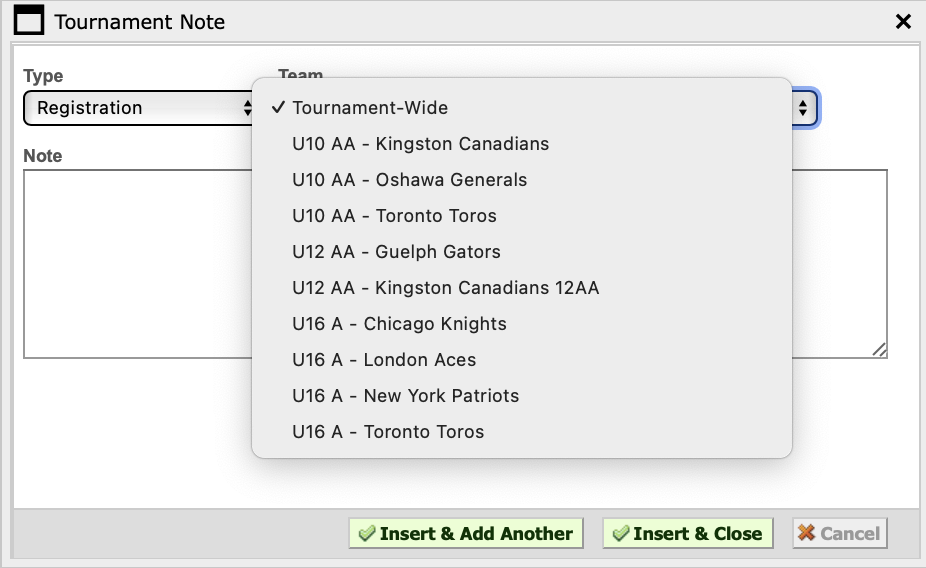
1.1 Choose the type of Note you are adding; Hotels, Registration, Scheduling, Communications, Payments & Other.
1.2 Select either a team in the tournament or if this note applies to the entire tournament, select Tournament-Wide
1.3. Enter your Note
1.4 Click the Insert & Close button
Tasks:
- To add a team or tournament Task, click the Add Task button (top right)
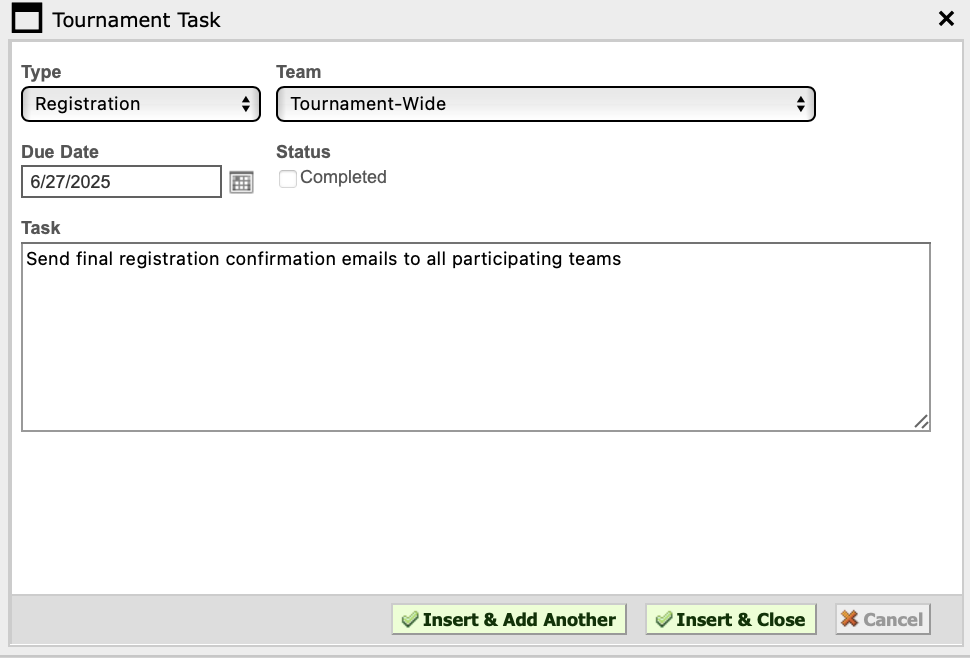
2.1 Choose the type of Task you are adding; Hotels, Registration, Scheduling, Communications, Payments & Other.
2.2 Select either a team in the tournament or if this Task applies to the entire tournament, select Tournament-Wide
2.3. Enter your Task
2.4 Enter the Due Date for this Task
2.5 Click the Insert & Close button
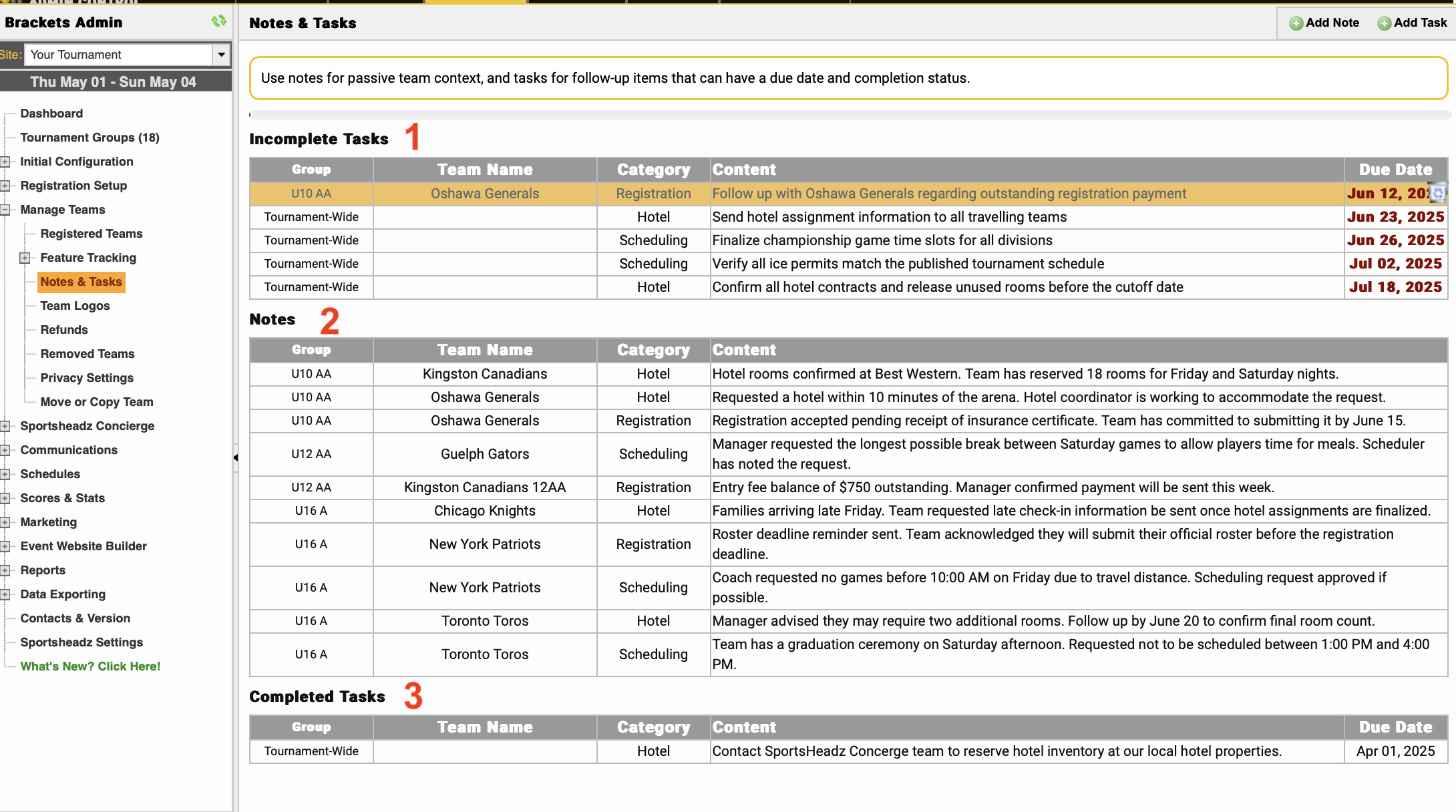
- A list of Incomplete Tasks will be generated at the top of the page, with a due date on the right. When this task is completed, edit the item and add check-mark to completed status.
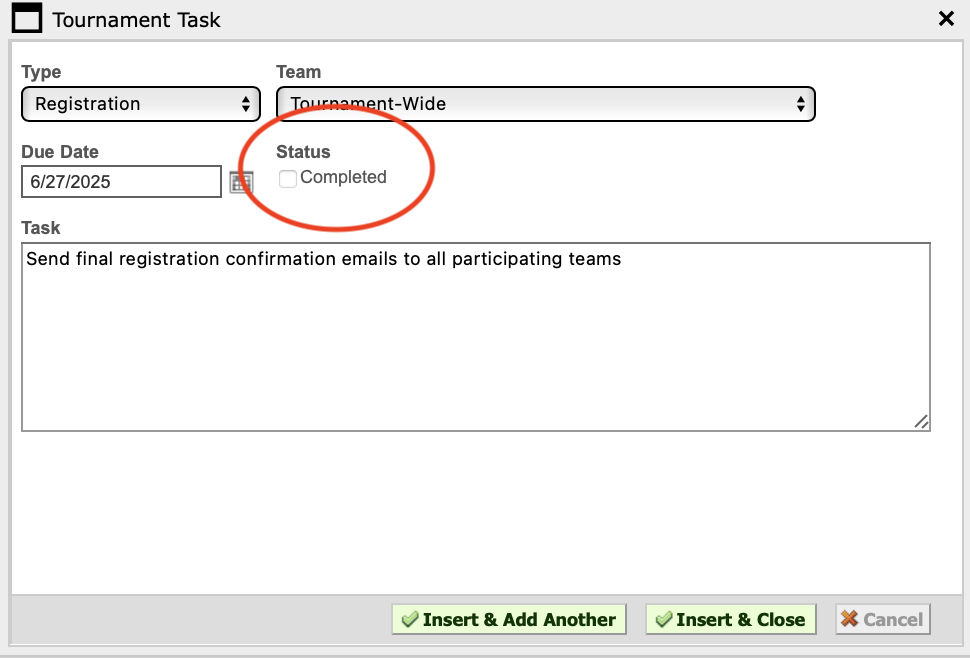
- A list of all your tournament and team specific Notes will be created in the middle table. You can edit or delete a note at any time
- All completed Tasks are displayed at the bottom of the page.
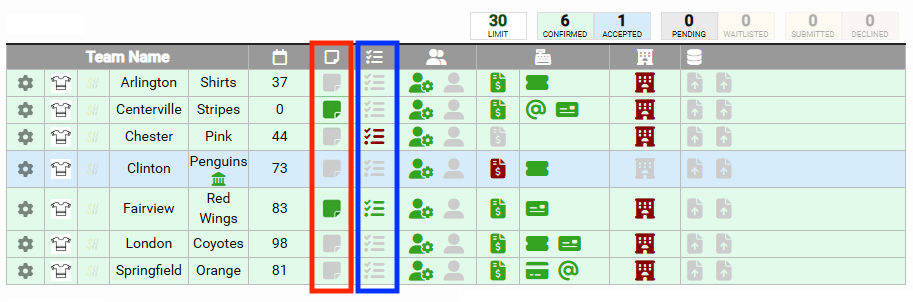
In the Manage Teams —> Registered Teams section, you will now see a column for Notes and a column for Tasks. Hover your curser over the Note or Task icon to view the details.
Grey icon = no tasks. Red icon = incomplete task(s), Green icon = (all) task(s) complete.