
Brackets Registered Teams Page (Part One)
Brackets-->Manage Teams-->Registered Teams
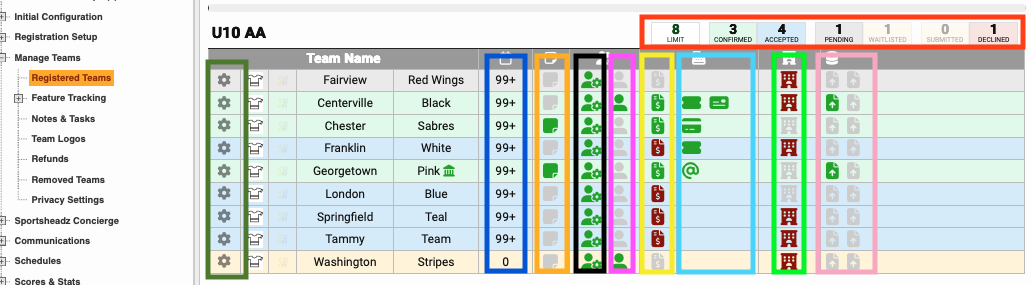
When teams register, they will automatically appear in your Registered Teams section under the group they selected during registration.
At the top of the table on the right-hand side, you'll see the Limit—the maximum number of accepted or confirmed teams allowed for that group—along with a breakdown of teams by registration status (e.g., 3 Confirmed, 4 Accepted, 1 Pending, 1 Waitlisted, 1 Declined).
Each status is colour-coded and visually represented in the table for easy reference. Green=Confirmed, Blue=Accepted, Grey=Pending, Beige=Waitlisted, Pink=Declined.
Column 1: On the left-side of the table is the settings wheel outlined in dark-green. Clicking this wheel will open the team's self-management page.
Column 2: is the logo the team has uploaded.
Column 3: Teams with a SH logo are on the SportsHeadz APP
Column 4 & 5: are the team names. Teams with a small green house ie (Georgetown) represent HOST teams.
Column 6: is the number of days the team has been in their current registration status. Moving a team from pending to accepted or accepted to confirmed will reset the number to 0.
Column 7: (Orange) Special notes entered by the team at registration. Hover your mouse over the icon to read the note.
Column 9: (Purple) Teams with non-admins (ie) parents
Column 10: (Yellow) A team's current payment status.
Grey icon = No fees created (yet) Fees are generated when a team is accepted.
Red icon = Fees have been generated for the team, but they still owe you money.
Orange Icon = Team is sending a cheque or E transfer but you have not received the payment.
Green icon = Team has paid in-full.
Column 11: (Light Blue) Payments types
Check, E transfer @, Credit Card, Manual Payment (Pencil) or Coupon
Payments with Red Icon = NO payments. The team has not made any payment arrangements from their self-management page.
Payments with Orange Icon = unverified, the team has marked in the system sending a cheque or E transfer but you have not received the payment.
Payments with Green Icon = verified, you have received the funds and marked the payments as verified in the Feature Tracking-->Fees & Payments section.
Column 12: (Green) Hotel Rooms
Grey = a local team and does not require hotel rooms
Red = a traveling team and will require hotel rooms
Black = a traveling team, manager has created a room block, but NO rooms have been "booked". SportsHeadz Concierge ONLY
Orange = a traveling team, manager has created a room block, but less than 5 rooms have been "booked". SportsHeadz Concierge ONLY
Green = a traveling team, manager has created a room block and more than 5 rooms have been "booked". SportsHeadz Concierge ONLY
White = a traveling team, they are Stay to Play Exempt SportsHeadz Concierge ONLY
Column 13: (Pink) Uploaded documents.
Grey icon = no document uploaded.
Red icon = document uploaded, you have not verified this document.
Green icon = document uploaded, you have verified this document to be satisfactory.
|
Filtering Registered Teams The Registration filtering panel on the right-hand side allows users to look for specific information or group teams with similar registration characteristics (such as who still owes money) Once you have selected your filtering criteria from the menu options, click the Apply Filters button at the top of the Filter Teams section. You can export your results using the Export Filtered Teams button at the bottom of the panel. Filter Options: Group – Select specific groups Registration Status – Selects all teams, from all groups with the same registration status. Days in Status – how many days the teams have been in the same status. Search Teams – locate teams using their name Search Contacts – find teams using an admins name or email address Payment Method – how did the team pay? Balance Owing – enter an amount Fee Due Date – select Deposit or Full Amount and enter number of days Uploads – search for teams have or have not uploaded their document(s). You can also filter by document type if you are requesting multiple documents. Rooms – Identify teams which are none-local (traveling to your event) and will likely require rooms. You can also identify teams who are local and will not require rooms Exporting: Export Filtered Teams - Brackets will export all teams in your current filter. Export Active Teams - Brackets will export to a spreadsheet ALL Accepted and Confirmed teams ONLY. |
|
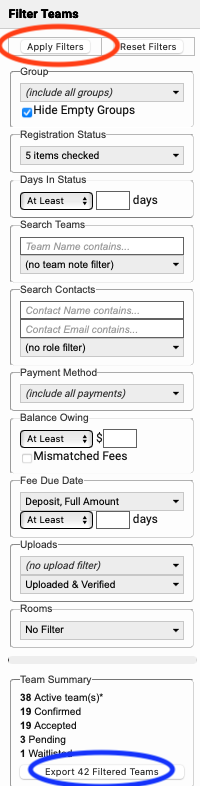
Part two of the Registered Teams page.